Understand what the saved icon represents
A saved website icon can make repeat visits to Zora easier, but an icon is not proof of a native casino application. Keep that distinction clear when choosing an access method. The shortcut opens a web address; the account, connection and game availability still need to work normally.
A shortcut is a convenient route back to a website. It does not establish a separate software product, an app-store listing or offline access to casino games. The page still needs its normal connection and account checks. This distinction matters when a phone presents the saved site in a more compact window: the appearance may feel application-like without proving native installation. Judge the route by the address it opens and the controls it provides, rather than by the icon shape alone.
Use the browser’s own saving control
On iPhone, Safari provides an option to add a website to the Home Screen through its sharing controls. The exact menu arrangement depends on the software version. Other mobile browsers can offer their own shortcut or install actions. Use the browser's visible option when available rather than downloading an unverified package from a message or advertisement.
Browser menus and labels vary, so follow the saving option actually shown on the device. If no appropriate control is available, an ordinary bookmark remains a way to retain the address; there is no need to install an unrelated file. Before accepting a suggested name, check that the underlying page is the intended Zora destination. A promotional message offering a download is a different action from saving the page already open in the browser and should not be treated as part of the same process.
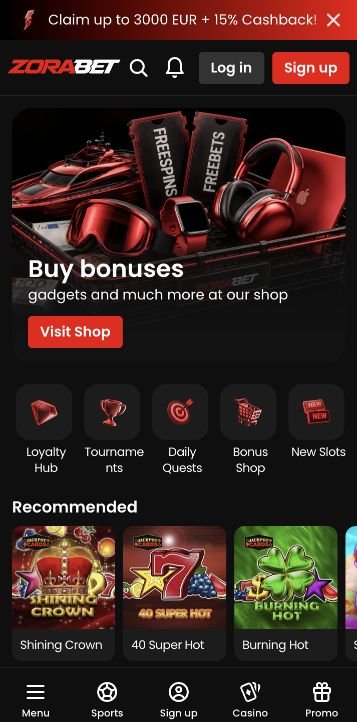
Save a stable destination and check it once
Before saving, navigate to the Zora page you actually want and inspect the address. A general lobby or language home is often easier to revisit than a temporary payment or login-return screen. Give the shortcut a recognisable name, then open it once to confirm where it leads. This is a navigation check, not a test of real-money play.
Choose a destination that will still make sense later, such as the language home or the relevant lobby. A temporary payment-return page may contain a one-time state and is a poor general entry point. After saving, return to the home screen and open the icon once to inspect its destination. Confirm the language and visible page heading, then close it if no further action is intended. This simple navigation check can reveal an accidental saved subpage without involving any account transaction.
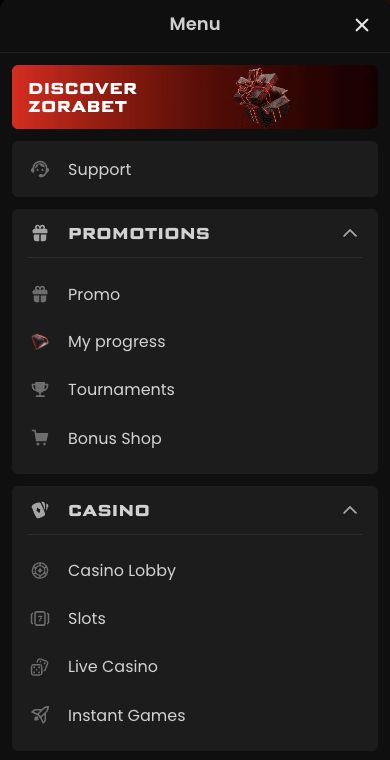
Expect account access to remain a separate step
A saved icon does not guarantee that you remain signed in. The site may request authentication again, and opening through a different browser context may show different local preferences. Do not assume that a missing remembered setting means the account balance has disappeared. Check the account itself after signing in.
An icon is not a promise of a permanent session. The next visit can require login, and a different browser context can keep its own local preferences. Separate those local differences from the account’s server-side records: a changed language or absent remembered setting is not evidence that funds were removed. Sign in through the intended account route and inspect the relevant account information. Do not create another account merely because the saved window looks different from a full browser tab.
Replace an obsolete icon without confusing account actions
If the shortcut becomes outdated, remove or replace the icon after checking the current destination. Deleting a home-screen shortcut should not be confused with closing the casino account. Account closure requires the operator's actual account process, not removal of a device icon.
If the destination is no longer useful, verify the current address in the browser before replacing the icon. Give the new shortcut a name that distinguishes it from an older saved route, then remove the obsolete shortcut if desired. This changes the device’s navigation convenience, not the operator’s account records. Account closure, exclusion or withdrawal require their actual account processes. Keeping these actions separate avoids the mistaken belief that deleting an icon closes access permanently or resolves an unfinished account request.